Stock Management
Learn how to track, manage, and control inventory in Prosessed AI.
Overview
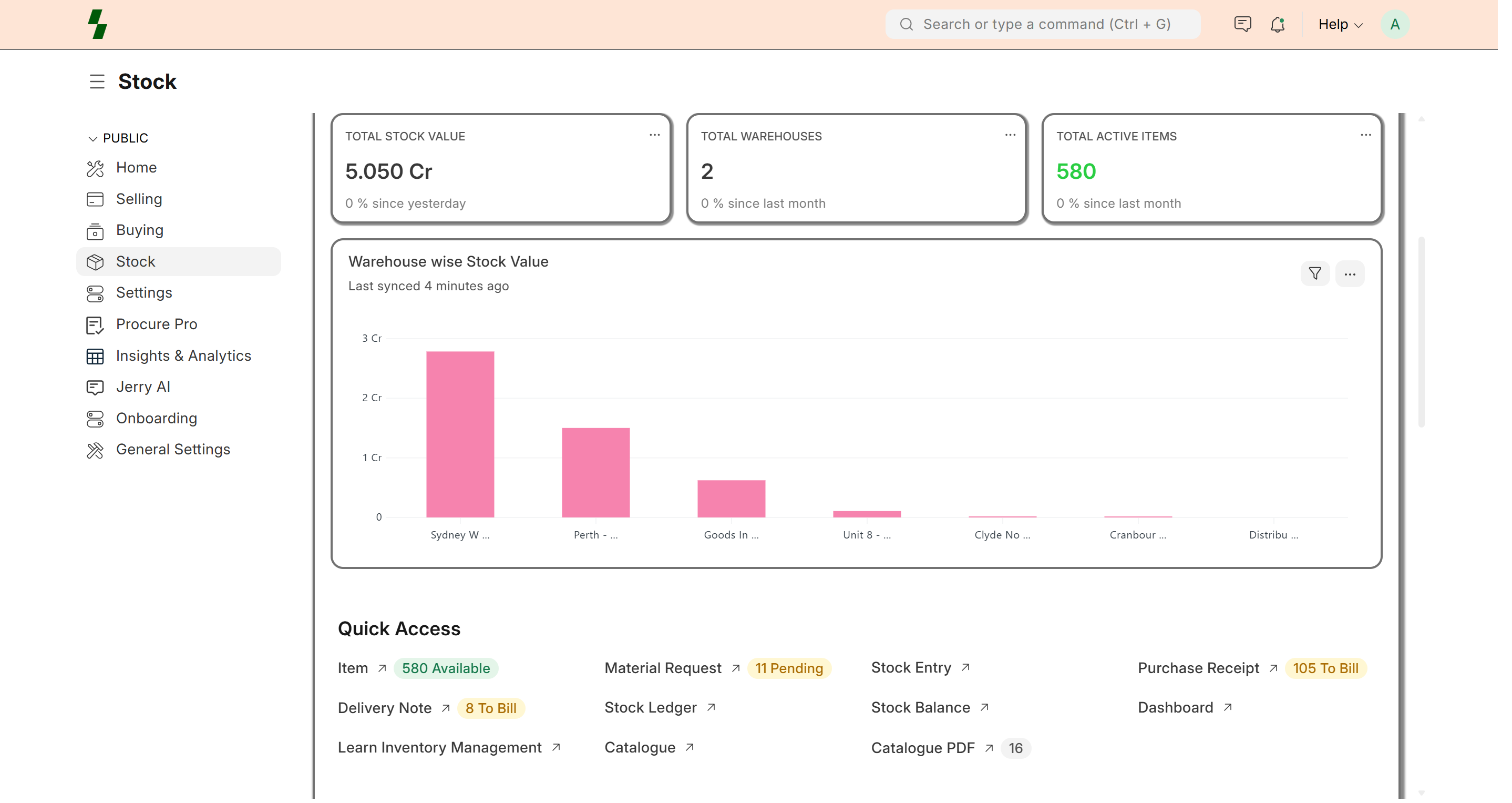
Stock Management helps you track the quantity and movement of items across your warehouses.
It ensures:
- Accurate stock levels
- Smooth order fulfillment
- Better inventory control
Key Concepts
Stock Item
A product that is physically stored and tracked in inventory.
Warehouse
A location where stock is stored.
Stock Movement
Any change in stock, such as:
- Purchase (stock increase)
- Sales (stock decrease)
- Transfer (warehouse movement)
Warehouse Setup
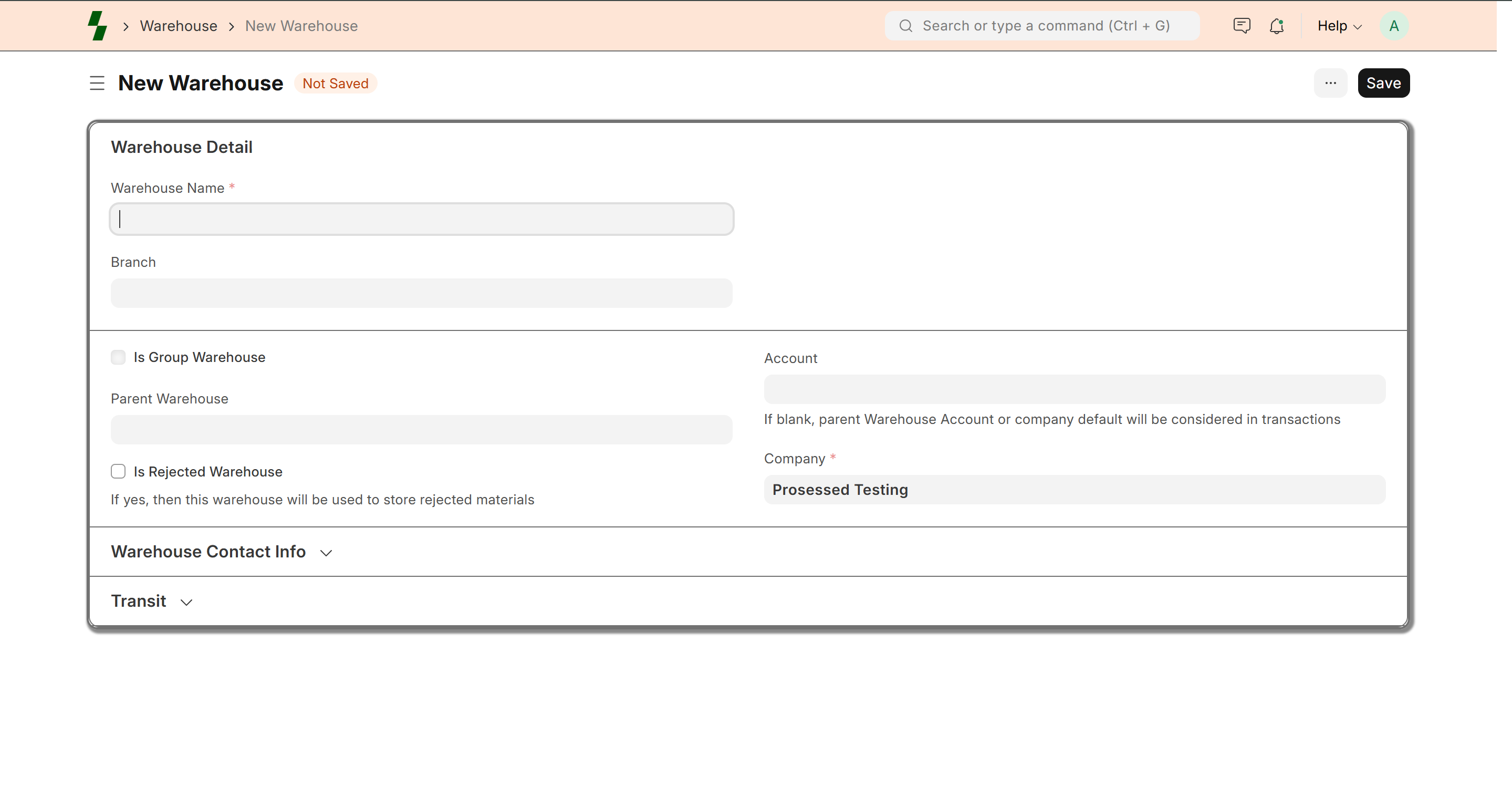
Before managing stock, create warehouses:
- Go to Stock → Warehouse
- Click Add New
- Enter warehouse name
- Save
You can create multiple warehouses if needed.
Stock Inward (Adding Stock)
Stock increases when items are received.
Methods:
Purchase Receipt (Recommended)
- Create Purchase Order
- Create Purchase Receipt
- Add items and quantity
- Submit
Stock Entry (Manual)
- Go to Inventory → Stock Entry
- Select type: Material Receipt
- Add items and quantity
- Select warehouse
- Submit
Stock Outward (Reducing Stock)
Stock decreases when items are sold or used.
Methods:
- Sales Order → Delivery → Invoice
- Stock Entry (Material Issue)
Stock Transfer
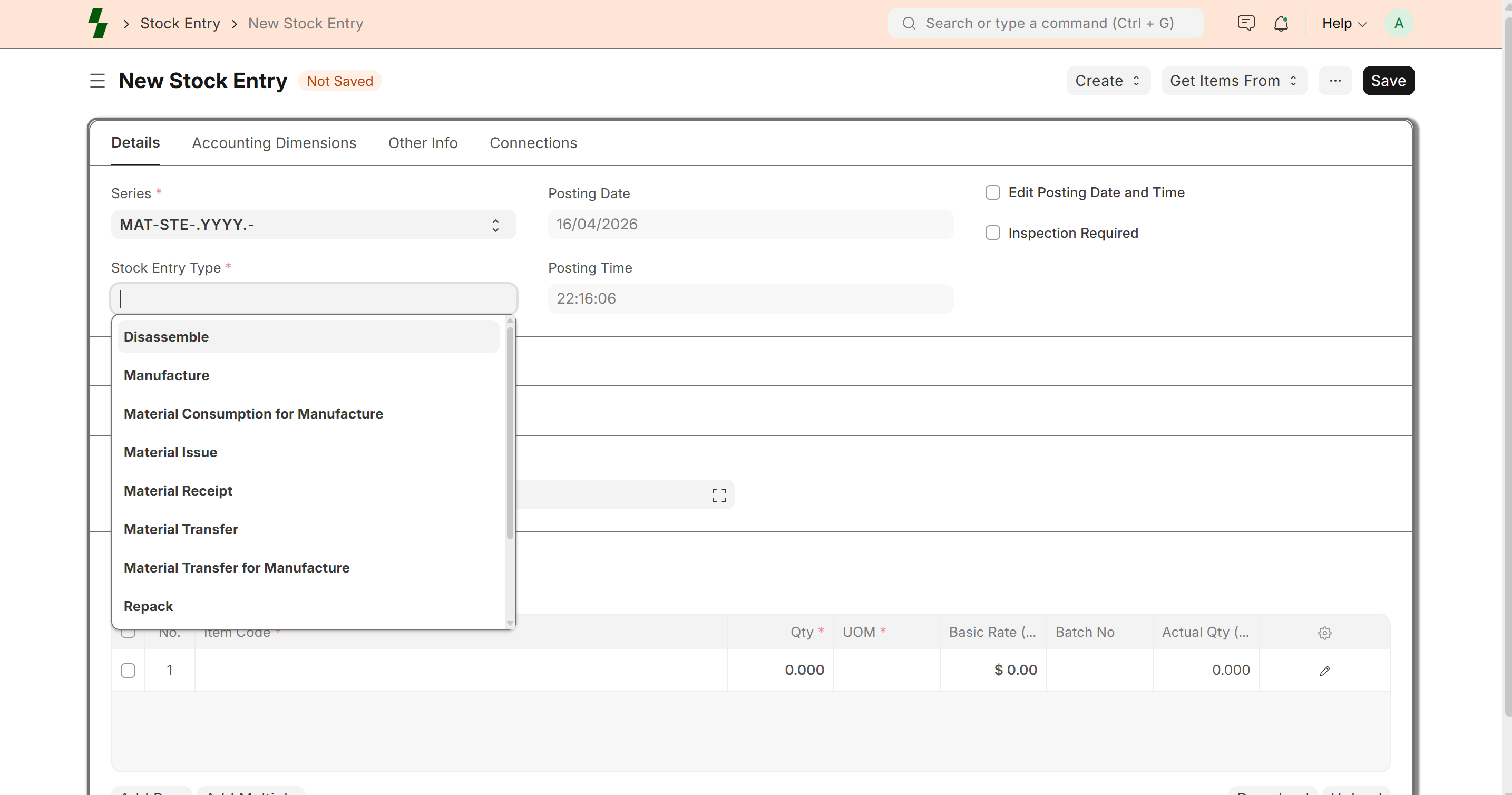
Move stock between warehouses:
- Create Stock Entry
- Select type: Material Transfer
- Add:
- Source warehouse
- Target warehouse
- Submit
Real-Time Stock Updates
Stock is updated automatically when:
- Purchase Receipt is submitted
- Sales order is delivered
- Stock entry is created
Batch & Expiry (Optional)
For certain items, you can enable:
- Batch tracking
- Expiry date tracking
Useful for:
- Food products
- Medicines
Stock Reports
You can track inventory using reports:
- Stock Balance
- Stock Ledger
- Item-wise stock
- Warehouse-wise stock
Minimum Stock & Alerts
Set minimum stock levels to avoid stockouts.
The system can notify when:
- Stock falls below threshold
Best Practices
- Always update stock through proper entries
- Avoid manual adjustments unless required
- Use warehouses correctly
- Regularly check stock reports
Common Issues
- Stock mismatch → Check stock entries
- Negative stock → Verify transactions
- Item not showing → Check warehouse selection
Example
Item: Cheese Makhana
Warehouse: Main Warehouse
Stock: 100 cartons
After sales of 10 cartons → Stock becomes 90 cartons
What Next?
- Create items → Item Management
- Manage pricing → Price Lists
- Process orders → Sales Order