Workspace Overview
Understand how to navigate and use Prosessed AI efficiently.
Overview
The workspace is your main working area in Prosessed AI.
It is where you:
- Access modules
- Create and manage records
- View reports and data
The workspace is designed to keep everything organized and easy to access.
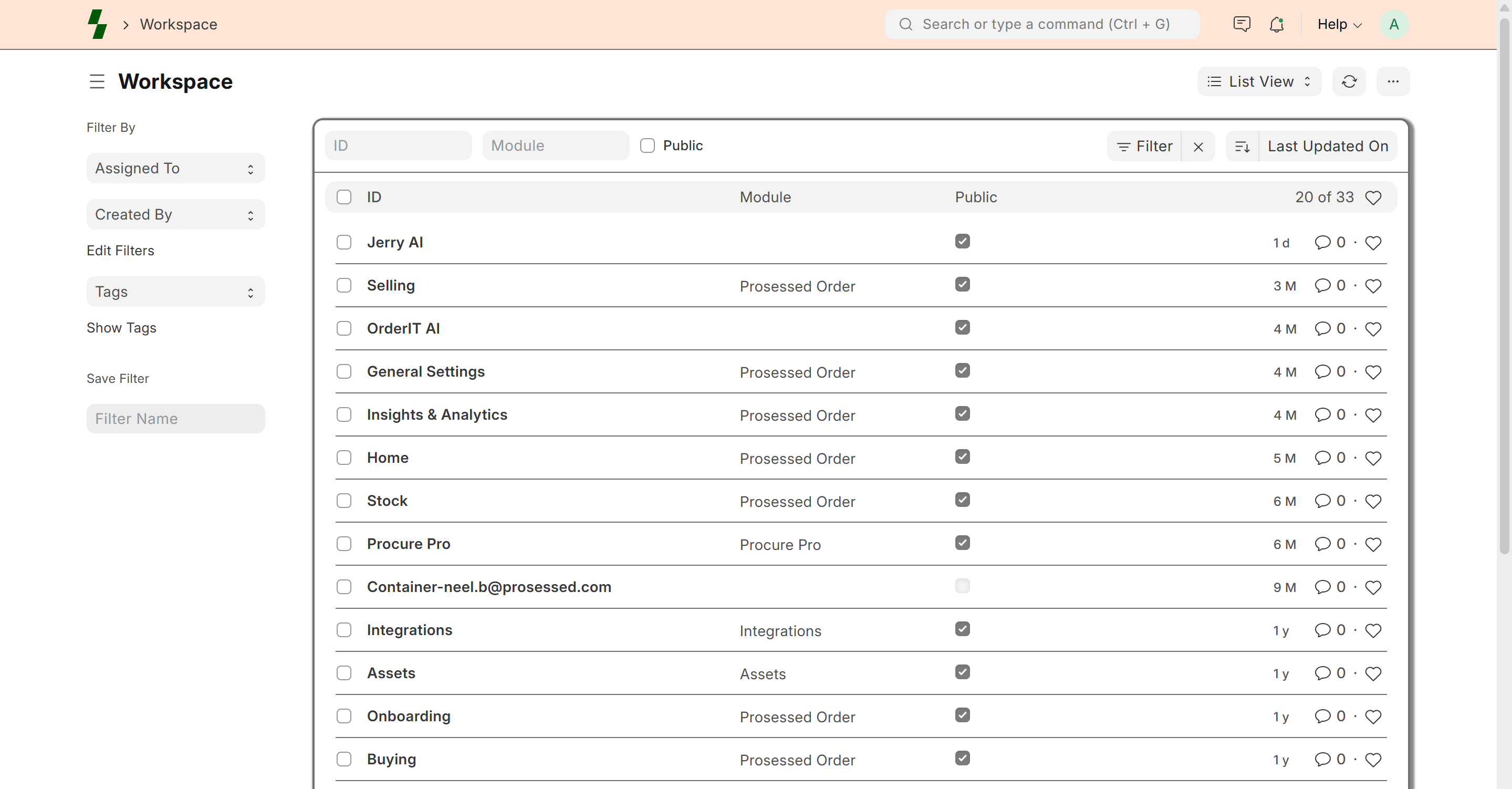
Main Sections of the Workspace
Navigation Menu
The navigation menu helps you move between different parts of the system.
Common sections include:
- Customers
- Inventory
- Sales
- Payments
- Procurement
- Reports
You can quickly switch between modules from here.
Dashboard
The dashboard gives you a quick overview of your business.
It may include:
- Sales summary
- Outstanding payments
- Inventory status
- Recent activity
This helps you track performance at a glance.
List View
Each module has a list view where you can see all records.
Example:
- List of customers
- List of sales orders
- List of items
From here, you can:
- Search records
- Filter data
- Open or edit entries
Form View
When you open a record, you see the form view.
This is where you:
- Enter data
- Update information
- Save or submit records
Example:
- Creating a sales order
- Adding a new customer
Actions & Buttons
Common actions available in the workspace:
- Create New → Add new record
- Save → Save changes
- Submit → Finalize record
- Edit → Modify existing data
How Data Flows in the Workspace
All modules are connected.
Example workflow:
- Create customer
- Add items
- Create sales order
- Generate invoice
- Record payment
This flow ensures data moves smoothly across the system.
Search & Filters
You can quickly find data using:
- Search bar
- Filters (date, status, customer, etc.)
This helps you locate records without scrolling through long lists.
Notifications & Alerts
The system may show alerts for:
- Pending payments
- Low stock
- Important updates
These help you take action quickly.
User-Specific Views
Each user sees the system based on:
- Assigned roles
- Permissions
This ensures users only access relevant information.
Best Practices
- Use filters to find data faster
- Keep records updated regularly
- Review dashboard daily
- Avoid duplicate entries
Common Issues
- Cannot find data → Use search or filters
- Missing module → Check user permissions
- Unable to edit → Record may be submitted
What Next?
- Add users → User Management
- Create records → Customers / Sales
- Manage stock → Inventory