Roles & Permissions
Roles & Permissions
Control what each user can see and do in Prosessed AI.
Overview
Roles and permissions help you manage access across your team.
Instead of giving everyone full access, you assign roles based on responsibility.
This ensures:
- Data security
- Fewer mistakes
- Better control over operations
What is a Role?
A role defines what a user is allowed to do in the system.
Each user can have one or more roles.
Example:
- Sales team → create orders
- Accounts team → manage payments
- Admin → full control
What are Permissions?
Permissions define the level of access within a role.
Each role can have permissions like:
- View
- Create
- Edit
- Delete
These permissions are applied to different modules like:
- Customers
- Inventory
- Sales
- Payments
How Roles and Permissions Work Together
Roles and permissions are connected:
- A role defines responsibility
- Permissions define actions
Example:
Sales User:
- Can create sales orders
- Can view customers
- Cannot access financial reports
Common Roles
Admin
- Full access to all modules
- Can manage users, roles, and settings
Sales User
- Create and manage sales orders
- View customers and products
Accounts User
- Manage invoices and payments
- View financial reports
Operations User
- Manage inventory and warehouses
- Handle stock movement
Assigning Roles to Users
- Go to Users
- Open a user profile
- Roles & Permissions
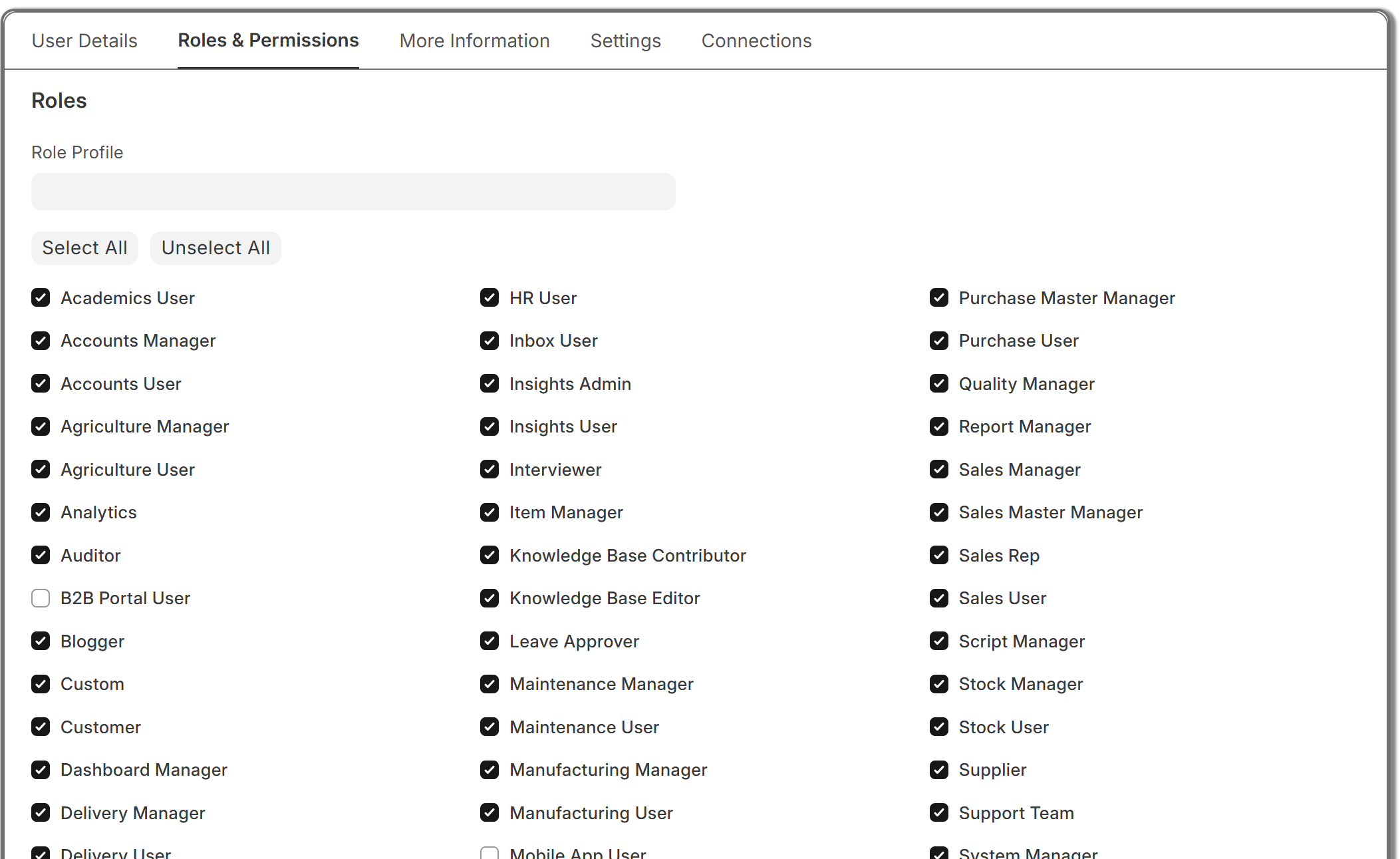
- Save changes
The user will now have access based on assigned roles.
Customizing Permissions
Permissions can be customized based on business needs.
You can control:
- Which module a role can access
- What actions they can perform
- Whether they can edit or only view data
Example Permission Setup
Sales Team
- Customers → View / Create
- Sales Orders → Full Access
- Payments → No Access
Accounts Team
- Invoices → Full Access
- Payments → Full Access
- Inventory → View Only
Operations Team
- Inventory → Full Access
- Sales Orders → View Only
Best Practices
- Use predefined roles whenever possible
- Avoid giving full access to all users
- Assign only required permissions
- Review roles regularly
Common Issues
- User cannot access module → Check role assigned
- User can see too much data → Reduce permissions
- User cannot perform action → Verify permission level
Important Notes
- Multiple roles can be assigned to one user
- Permissions are combined across roles
- Admin role should be limited to trusted users
What Next?
- Add new users → User Management
- Set up system → Installation & Setup
- Start operations → Sales
Last updated 6 months ago