Sales Order Creation
Sales Order Creation
Learn how to create and manage sales orders in Prosessed AI.
Overview
A Sales Order is created when a customer places an order for products.
It is the starting point of the sales process and connects to:
- Inventory
- Invoicing
- Payments
When to Use Sales Order?
Create a sales order when:
- A customer places an order
- You want to reserve stock
- You want to track pending deliveries
Steps to Create a Sales Order
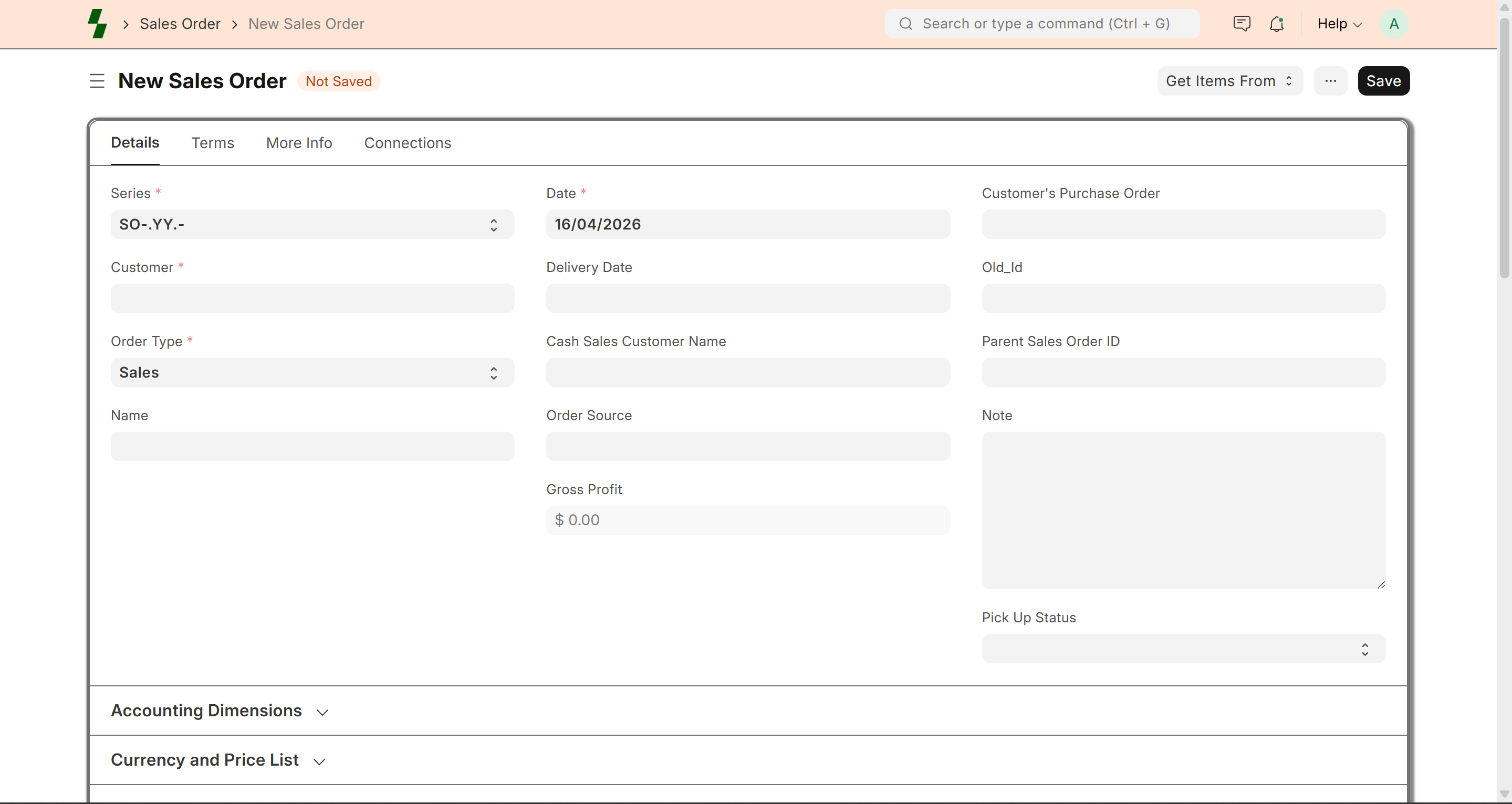
- Go to Sales → Sales Order
- Click on Add New
Basic Details
Select Customer
- Choose the customer placing the order
- Customer pricing and tax will be applied automatically
Set Order Date
- Date when order is created
Select Price List
- Automatically fetched from customer
- Can be changed if required
Add Items
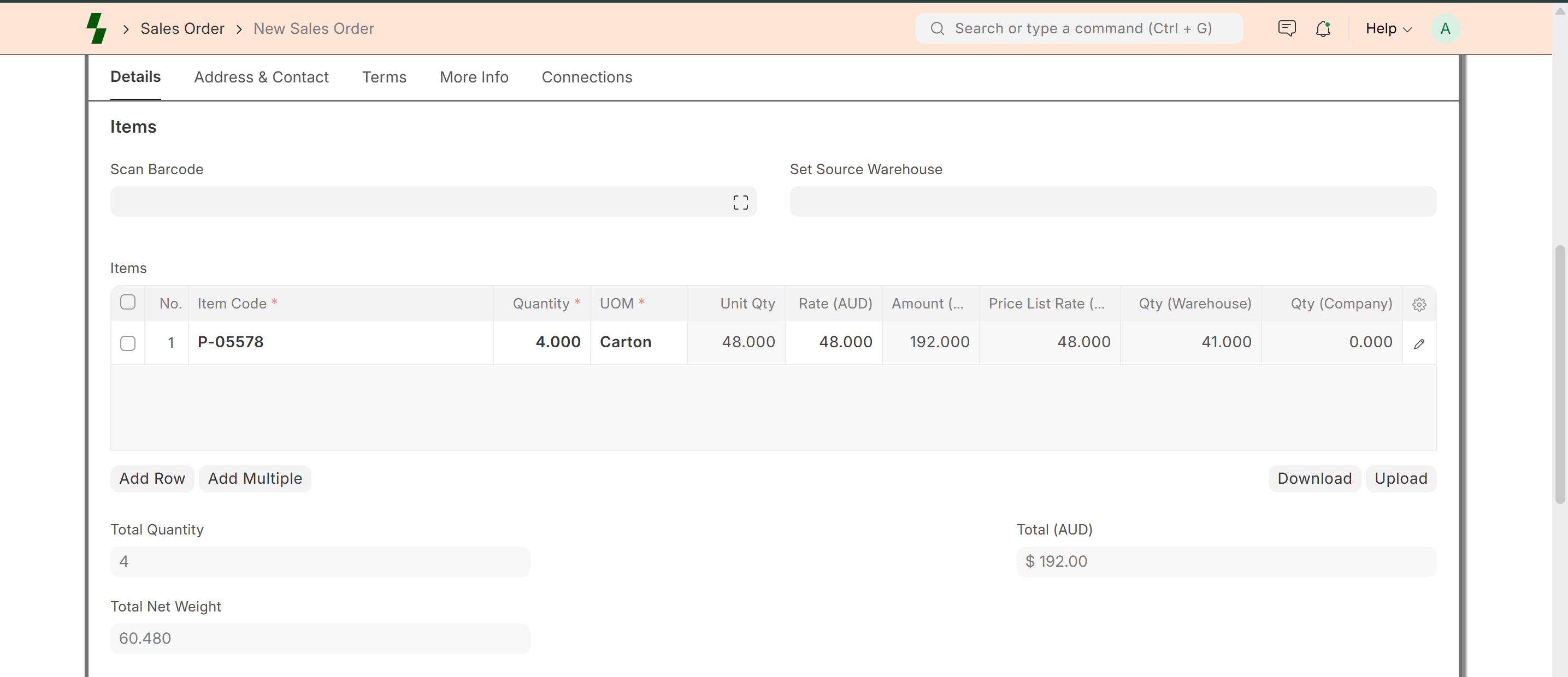
- Click Add Row
- Select item
- Enter:
- Quantity
- UOM (pcs / carton)
- Rate (auto from price list)
Pricing & Discount
- Price is auto-filled from price list
- Discounts can be applied:
- Per item
- Overall order
Check Stock Availability
- System shows available quantity
- Helps avoid selling out-of-stock items
Taxes & Charges
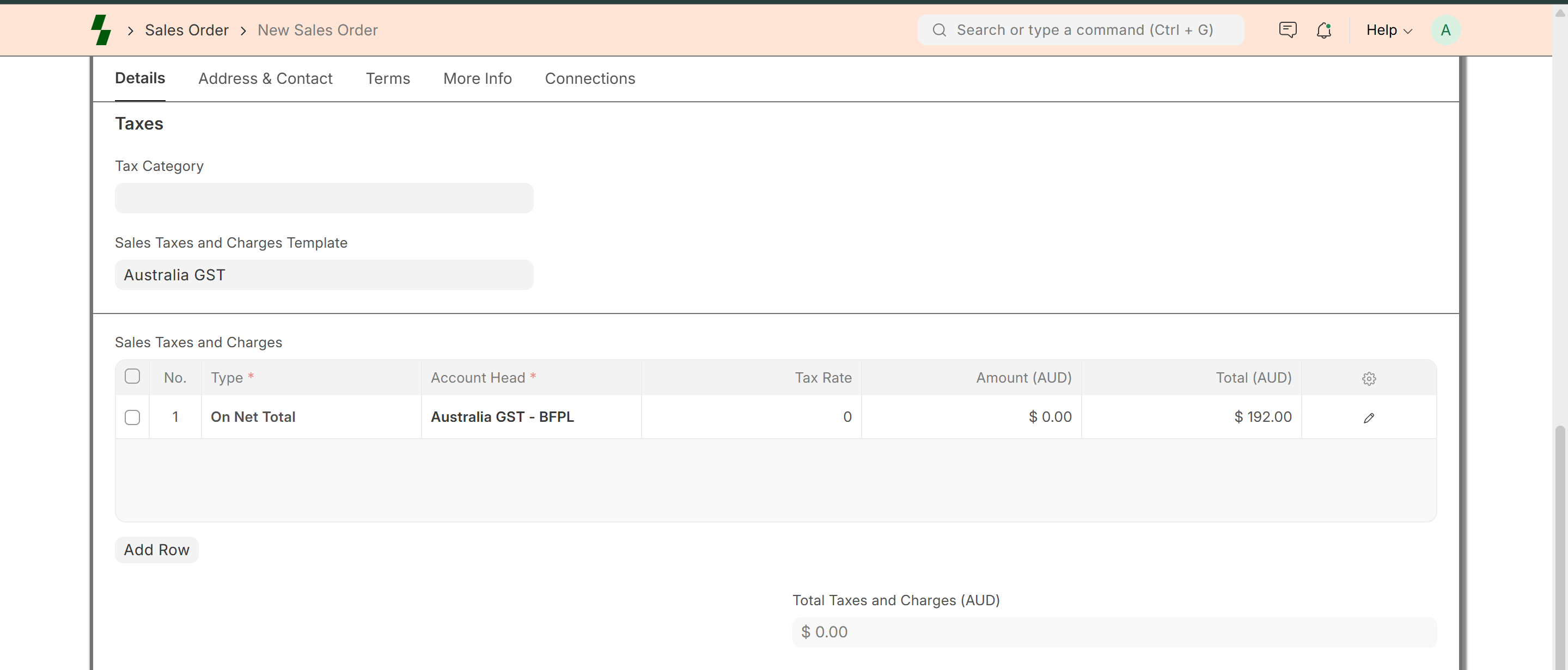
- Taxes are applied automatically based on setup
- You can review or adjust if needed
Save and Submit
- Click Save
- Click Submit
What Happens After Submission?
- Order is confirmed
- Stock can be reserved
- Ready for delivery and invoicing
Sales Flow
Sales Order follows this flow:
Sales Order → Delivery → Invoice → Payment
Manage Sales Orders
You can:
- Edit before submission
- Cancel if required
- Track order status
Order Status
- Draft → Not submitted
- Submitted → Confirmed
- Completed → Fully delivered
- Cancelled → Order closed
Best Practices
- Always verify customer and pricing
- Check stock before confirming
- Use correct UOM (pcs vs carton)
- Apply discounts properly
Common Issues
- Wrong pricing → Check price list
- Item not available → Check stock
- Order not submitting → Verify mandatory fields
Example
Customer: ABC Traders
Item: Cheese Makhana
Qty: 10 cartons
Price: $96 per carton
What Next?
- Deliver order → Delivery Note
- Generate invoice → Sales Invoice
- Track payments → Payments
Last updated 6 months ago