Password Management
Password Management
Learn how to manage passwords securely in Prosessed AI.
Overview
Passwords are used to secure user access to the system.
Proper password management ensures:
- Data security
- Safe access to business information
- Protection from unauthorized usage
Logging In
Users can log in using:
- Registered email address
- Password
Make sure both are entered correctly.
Changing Password
Users can change their password anytime.
Steps:
- Go to Profile / Settings
- Click on Change Password
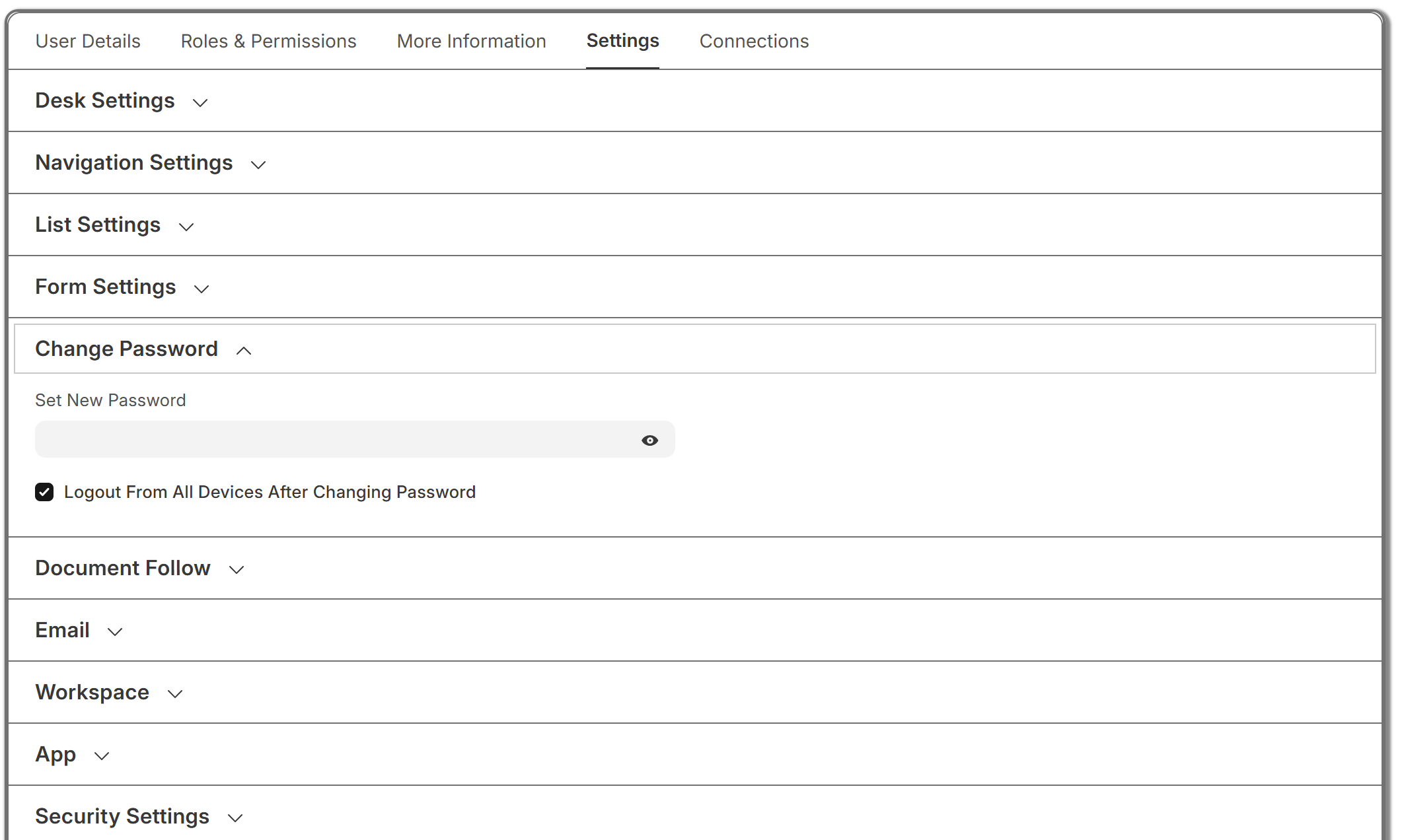 3. Enter:
- New password
- Save changes
Resetting Password
If a user forgets their password:
Steps:
- Click on Forgot Password on login screen
- Enter registered email
- Check email for reset link
- Set a new password
Password Requirements
For security, passwords should:
- Be at least 8 characters long
- Include letters and numbers
- Avoid common words or simple patterns
Example of strong password:
Order@1234Secure#2025
Admin Password Control
Admins can:
- Reset passwords for users
- Force users to change password
- Disable user access if required
Session & Security
- Users are automatically logged out after inactivity
- Sessions expire for security reasons
- Users need to log in again after timeout
Best Practices
- Do not share passwords with others
- Change passwords regularly
- Use strong and unique passwords
- Avoid using the same password across systems
Deactivating Access
If an employee leaves:
- Disable the user account
- Do not delete user (to keep data history)
Common Issues
- Cannot login → Check email and password
- Password reset email not received → Check spam folder
- Account locked → Contact admin
What Next?
- Manage users → User Management
- Assign roles → Roles & Permissions
- Set up system → Installation & Setup
Last updated 6 months ago